123LiveStore WaaS Template Customer Dashboard User Guide
This User Guide is specifically for customers of e-commerce websites built with a 123LiveStore WaaS Template. It covers the customer dashboard, which has 11 main sidebar menu options, and explains what each one is for, when to use it, and what you can usually do there.
However, this guide is not really applicable to customers of 123LiveStore.com; it is provided here for the convenience of 123LiveStore WaaS Template subscribers so that they can either copy or link to it from their own website for their customers, since this user guide applies to their customers.
If you are a 123LiveStore Customer, please refer to the 123LiveStore Platform Customer Dashboard User Guide
Accessing the Customer Dashboard
To access the Customer Dashboard, users must first log in to the website (a website created using the 123LiveStore WaaS Template). Once logged in, click on the profile image/username link on the top right of the navigation bar and select 'Dashboard' as shown below:

The Dashboard on a 123LiveStore WaaS Template site
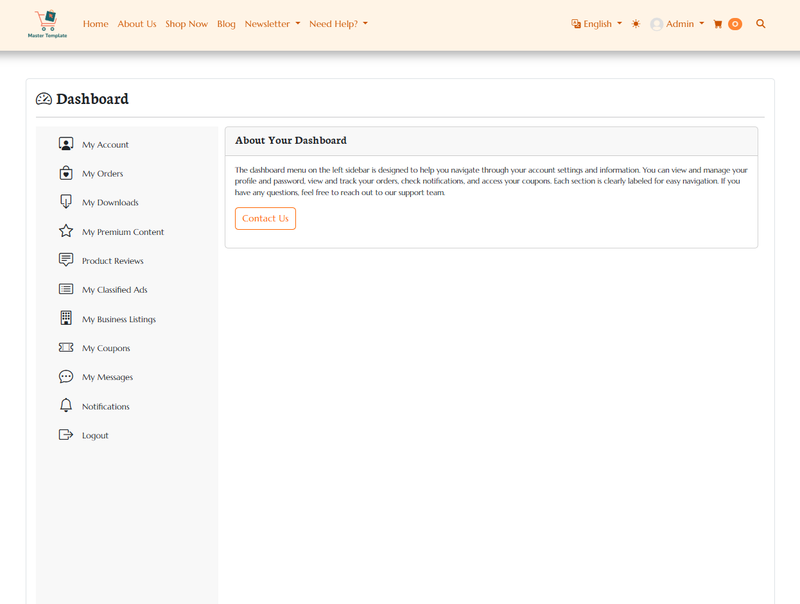
What This Dashboard Is For
Your dashboard is your personal account area inside the site.
Use it to:
1. Manage your account details.
2. Check your orders, downloads, and premium content.
3. Manage reviews, ads, or business listings.
4. View coupons, messages, and notifications.
How The Sidebar Works
Some sidebar items open a page directly.
Some sidebar items expand to show extra links underneath them.
In this guide:
1. Each of the 11 main sidebar options is explained.
2. Where a menu has sub-items, those are explained inside the same section.
1. My Account
What it is:
Your personal account settings area.
Use it for:
1. Viewing and updating your profile.
2. Updating your shipping information.
3. Changing your password.
4. Deactivating your account.
Sub-items in this section:
1. Account Profile
View your saved personal details and basic account information.
2. Shipping Info
Check or update your saved shipping address details.
3. Change Password
Update your login password.
4. Deactivate Account
Permanently deactivate your account if you no longer want to use it.
Tip:
Use this section whenever your personal details, address, or login details need updating.
2. My Orders
What it is:
Your order history page.
Use it for:
1. Reviewing past purchases.
2. Checking order dates and totals.
3. Opening order details for a specific order.
Tip:
If you want to confirm what you bought or review a previous order, this is the place to check.
3. My Downloads
What it is:
Your download library for eligible digital purchases.
Use it for:
1. Accessing downloadable files tied to your orders.
2. Reviewing which digital items were granted to you.
Tip:
If you bought a digital product and need the file again, check here.
4. My Premium Content
What it is:
Your access page for premium pages available to your user groups.
Use it for:
1. Seeing which protected content you currently have access to.
2. Opening premium pages included with your membership, purchase, or account group.
Tip:
If content is restricted to certain members or buyers, this page helps you find what you are allowed to open.
5. Product Reviews
What it is:
Your review management page for purchased items.
Use it for:
1. Seeing which purchased items can be reviewed.
2. Writing a new review.
3. Editing an existing review when editing is still allowed.
Tip:
If you want to leave feedback on something you bought, start here.
6. My Classified Ads
What it is:
Your classified ads management area.
Use it for:
1. Viewing all ads you created.
2. Filtering ads by status such as active, pending, sold, or inactive.
3. Creating a new ad when you have a valid ad package.
4. Editing or deleting your ads.
Tip:
This menu only appears when listings are enabled for the site.
7. My Business Listings
What it is:
Your business directory listing area.
Use it for:
1. Viewing your business listings.
2. Creating a new business listing.
3. Editing or deleting an existing business listing.
4. Applying unused package upgrades or buying a tier upgrade for a listing.
Tip:
This menu only appears when the directory feature is enabled for the site.
8. My Coupons
What it is:
Your coupon list.
Use it for:
1. Viewing currently applicable coupons.
2. Checking how often you have already used a coupon.
3. Reviewing coupon validity while they are active.
Tip:
Check this before checkout if you want to know whether you already have a valid discount available.
9. My Messages
What it is:
Your support and conversation inbox.
Use it for:
1. Viewing your conversations.
2. Starting a new message thread.
3. Replying to existing conversations.
4. Following up on order-related questions.
Tip:
Use this when you need direct back-and-forth communication with the team.
10. Notifications
What it is:
Your notification center.
Use it for:
1. Viewing all notifications.
2. Checking order-related updates.
3. Viewing promotion-related notifications.
4. Marking notifications as read or deleting read items.
Sub-items in this section:
1. All Notifications
Shows every notification linked to your account.
2. Order Updates
Shows notifications specifically related to orders and order status changes.
3. Promotions
Shows promotion-related notifications.
Tip:
If you are waiting for updates about orders, promos, or account events, check this section regularly.
11. Logout
What it is:
The sign-out option.
Use it for:
1. Ending your current session safely.
2. Logging out before leaving a shared device.
Tip:
Always use this when you are finished on a shared or public computer.
Suggested Everyday Use
Here is a simple way most users will use this dashboard:
1. Start with My Account if you need to update personal or shipping details.
2. Check My Orders for purchase history.
3. Open My Downloads or My Premium Content for access after purchase.
4. Use Product Reviews when you want to leave feedback.
5. Use My Classified Ads or My Business Listings if you manage listings on the site.
6. Use My Messages and Notifications to stay updated and communicate.
Common Questions
"I bought a digital product. Where do I get it?"
Go to My Downloads.
"I want to change my address or profile details. Where do I go?"
Open My Account.
"I want to see my past purchases. Where do I go?"
Open My Orders.
"I want to leave a review for something I bought. Where do I go?"
Open Product Reviews.
"I need help from the team. Where do I message them?"
Open My Messages.
"I want to check updates about my orders or promotions. Where do I go?"
Open Notifications
Summary
The Customer Dashboard is your personal control center for your account, purchases, downloads, premium access, listings, messages, and notifications.